How OX-VPN Works
OX-VPN uses the official OpenVPN app and a personal configuration file from your account dashboard. Follow these steps once on each device you want to protect.
2 Profiles included: Laptop + MobileEach subscription includes two OpenVPN profiles, so you can use one on your laptop and one on your mobile device.
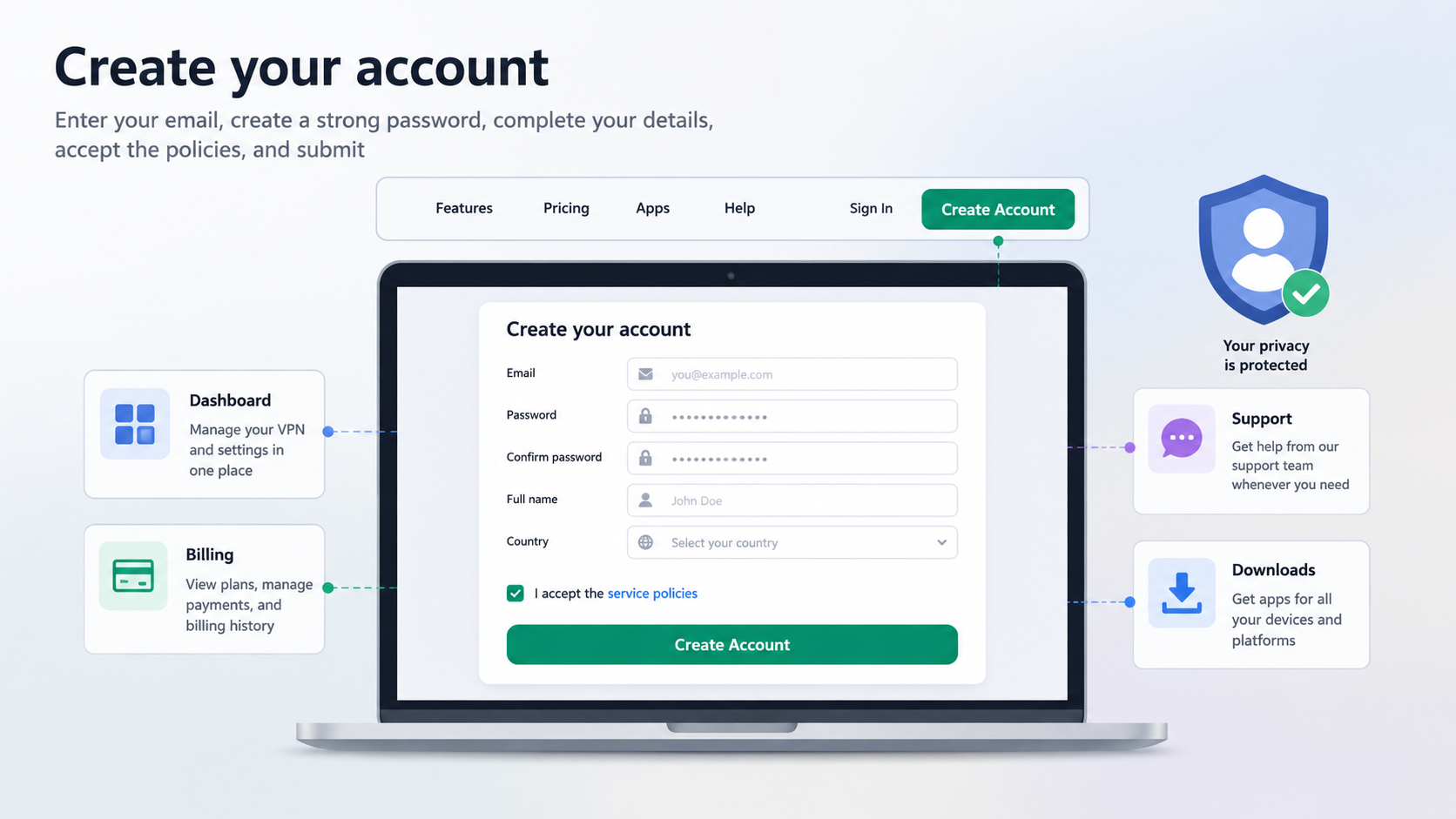
Create your secure account
Click Create Account in the header or below. On the Create Account page, enter your email, choose a strong password, complete your customer information, accept the service policies, and submit the form. Your account gives you access to the dashboard, billing, support, and device profile downloads.
Next click: Open Create Account
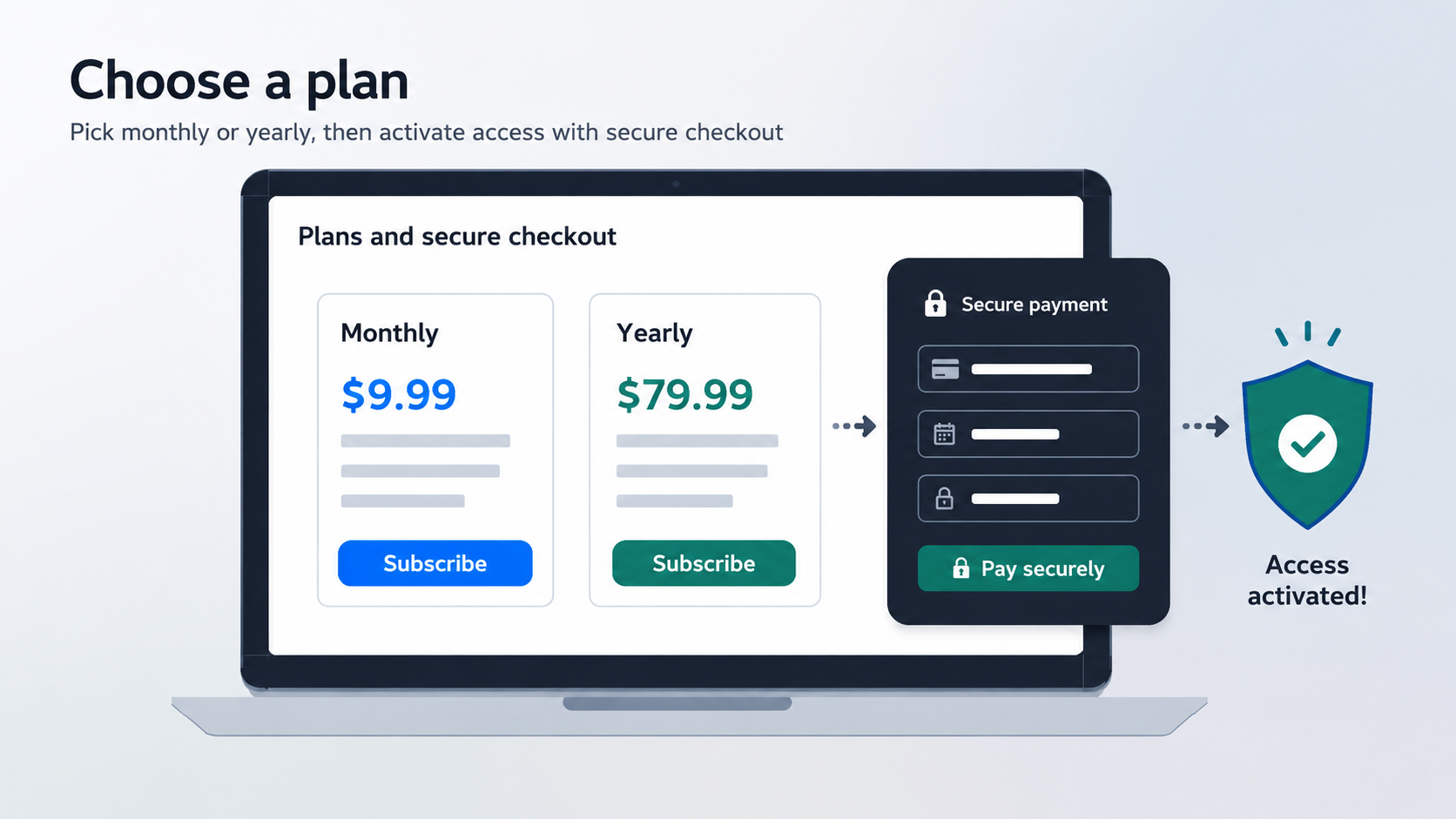
Choose a plan and activate access
Open the Pricing page and choose Subscribe Monthly or Subscribe Yearly. Complete payment securely through Stripe. When Stripe confirms the payment, OX-VPN activates your account so you can create VPN profiles from the dashboard.
Next click: Open Pricing
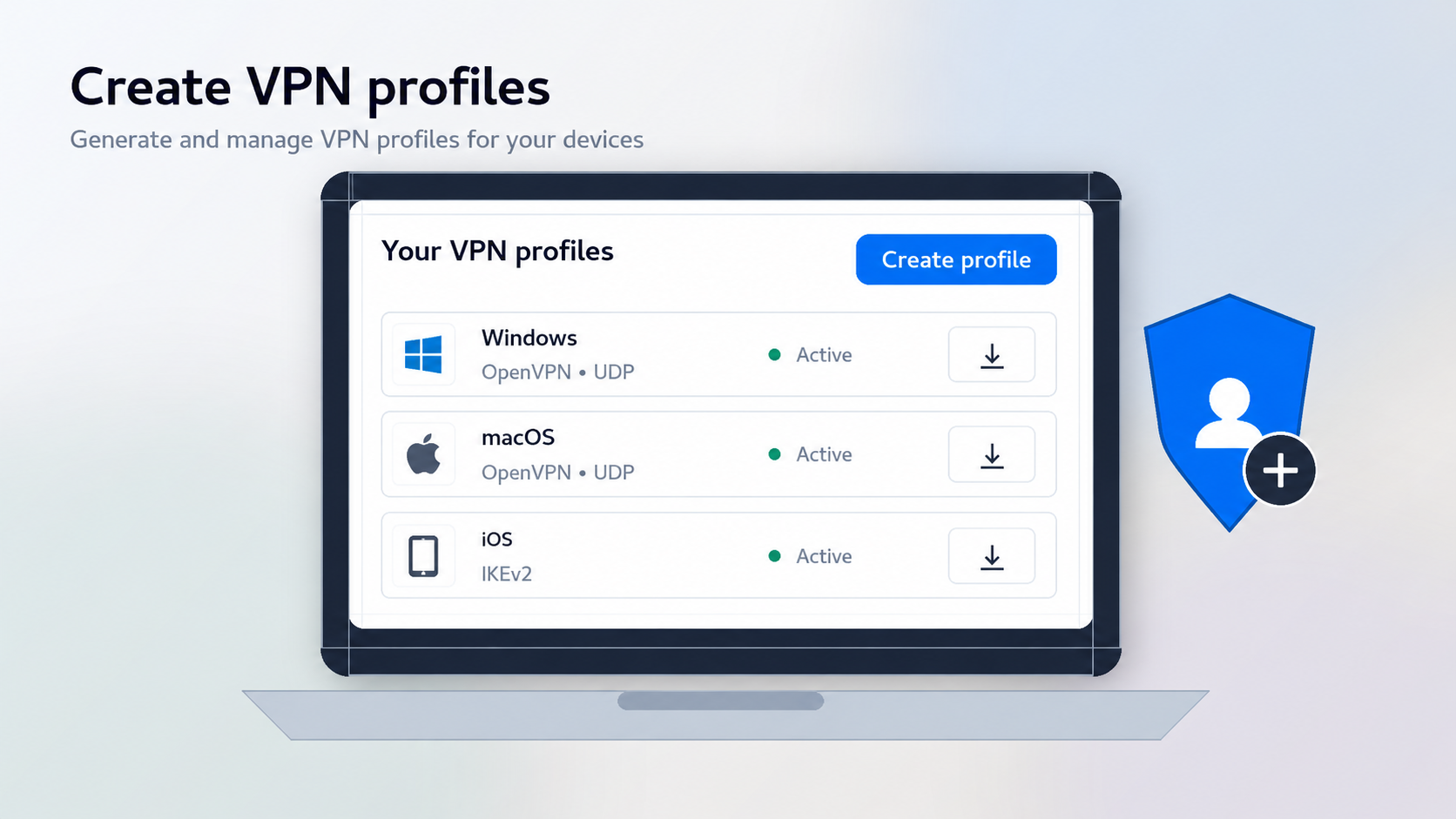
Manage subscription and auto payments
After login, open Dashboard and click Manage Billing. The billing portal lets you manage payment details, view invoices, update billing information, and cancel future renewals before the next billing date. Monthly and yearly plans renew automatically unless you cancel.
Next click: Open Dashboard
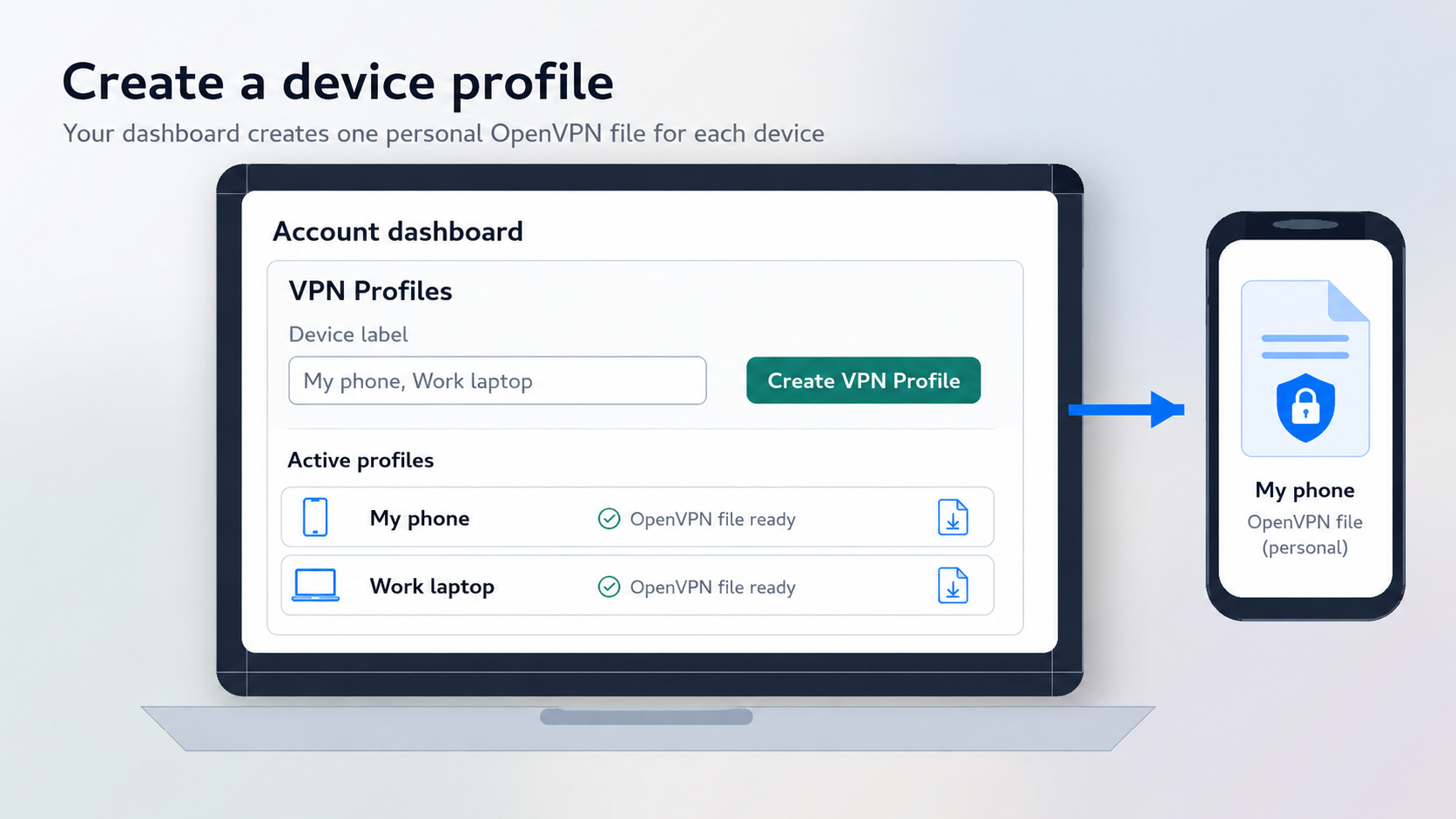
Create a device profile
Open Dashboard. In the VPN Profiles section, type a Device label such as My phone or Work laptop, then click Create VPN Profile. Each active profile creates one personal OpenVPN configuration file for that device.
Next click: Open Dashboard
Download OpenVPN Connect
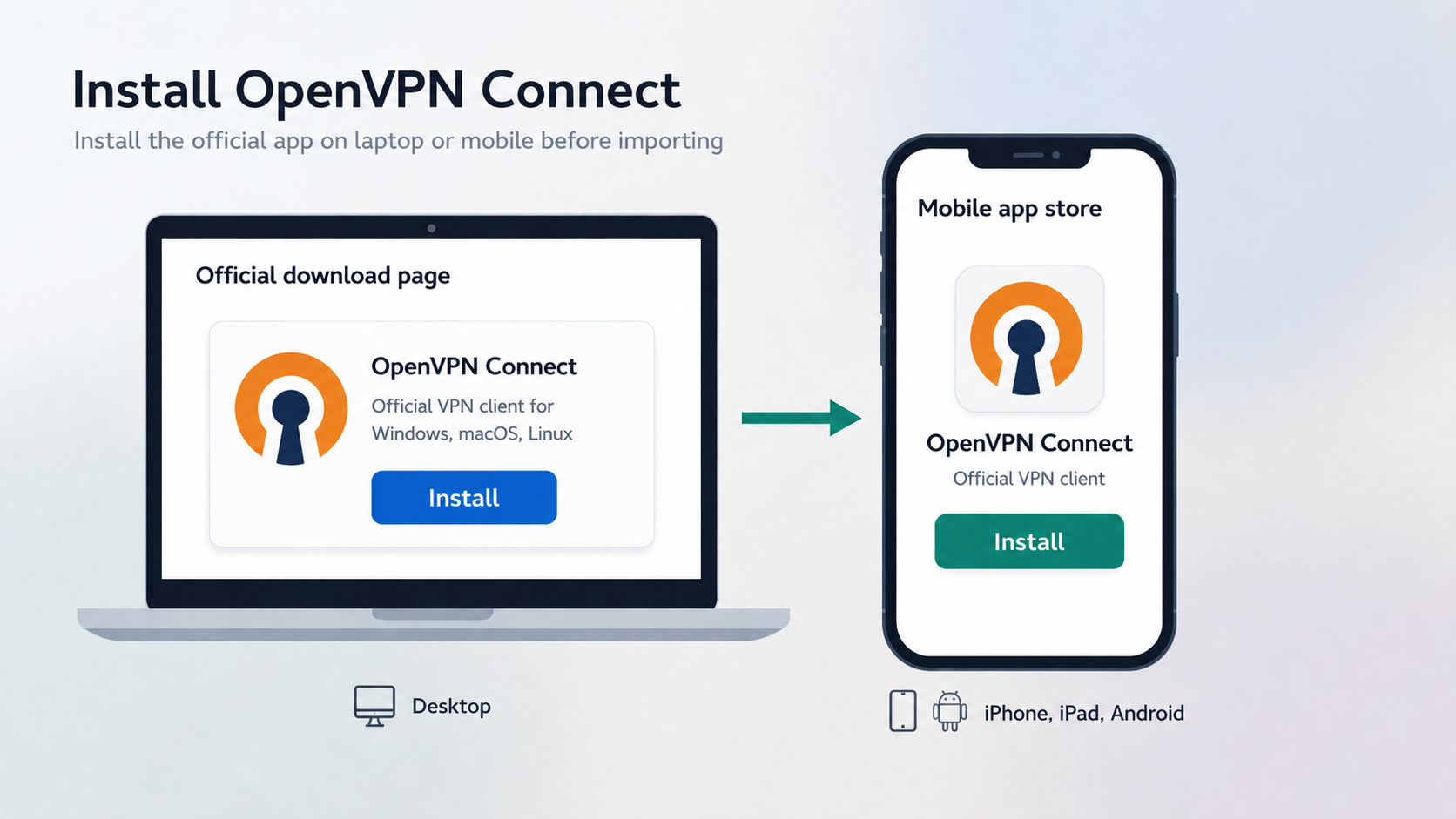
On the device you want to protect, download and install the official OpenVPN Connect app. Use the official OpenVPN download page for desktop, or your mobile app store for iPhone, iPad, or Android.
Next click: Download OpenVPN Connect
Import your profile file
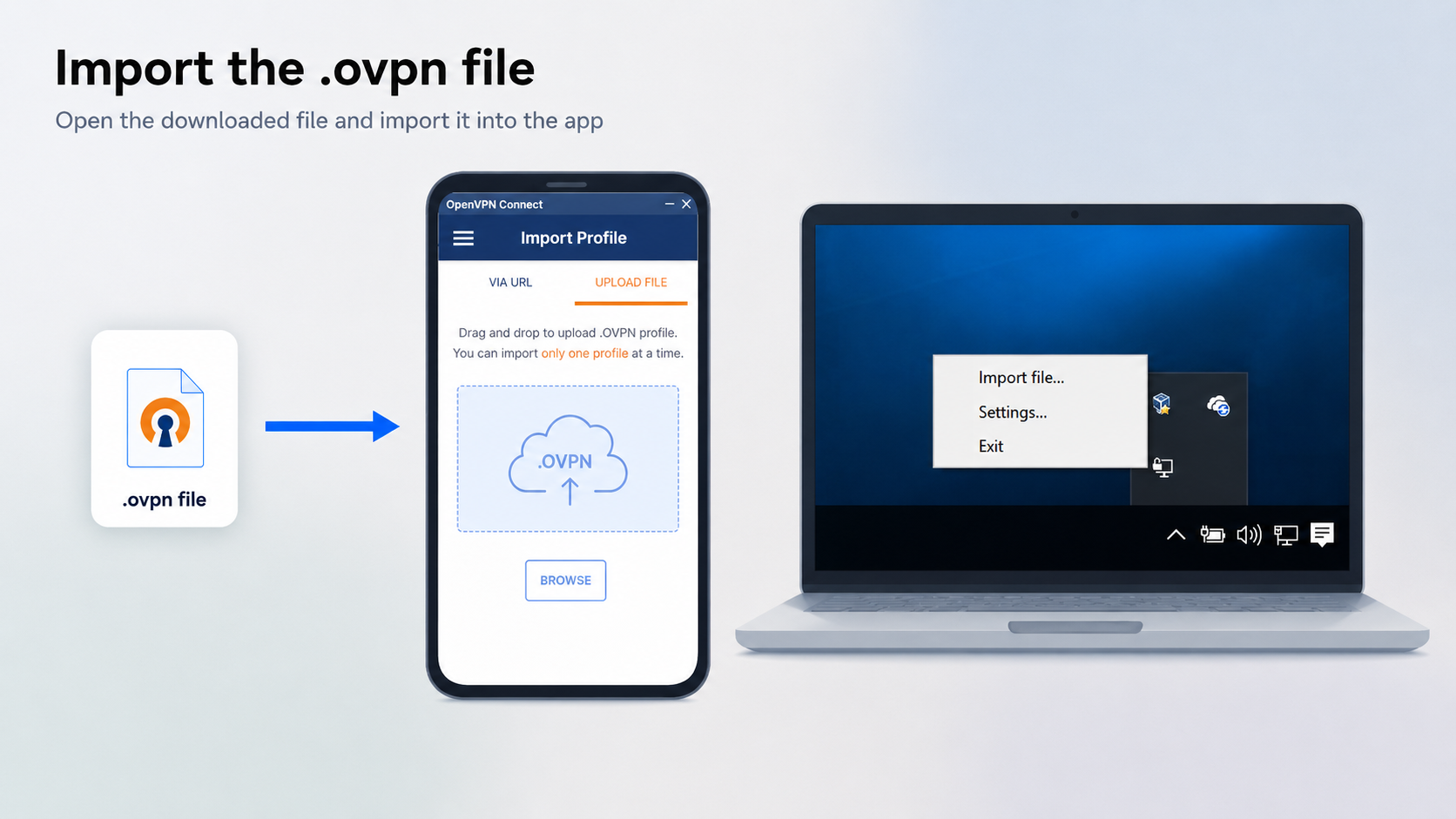
Return to Dashboard and click Download .ovpn beside your active device profile. Then open OpenVPN Connect, choose Import Profile or import from file, and select the downloaded .ovpn file.
Next click: Open Dashboard
Connect with your account login
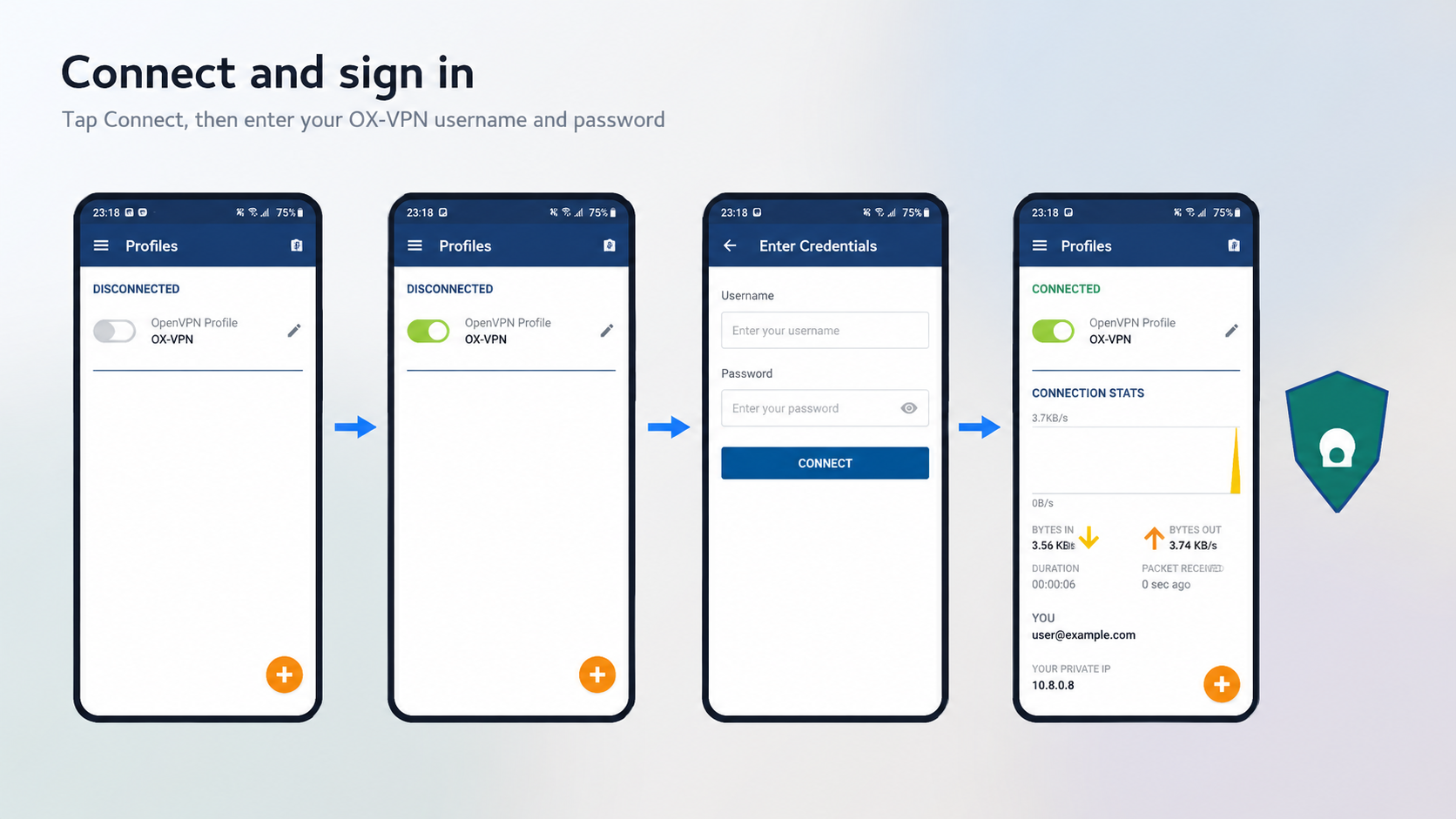
In OpenVPN Connect, tap the imported profile or the Connect switch. When prompted, enter the OpenVPN username shown on your Dashboard, or your account email, then enter your account password. The app verifies your account and connects your device.
Next click: View Dashboard Login Details
Browse through the VPN
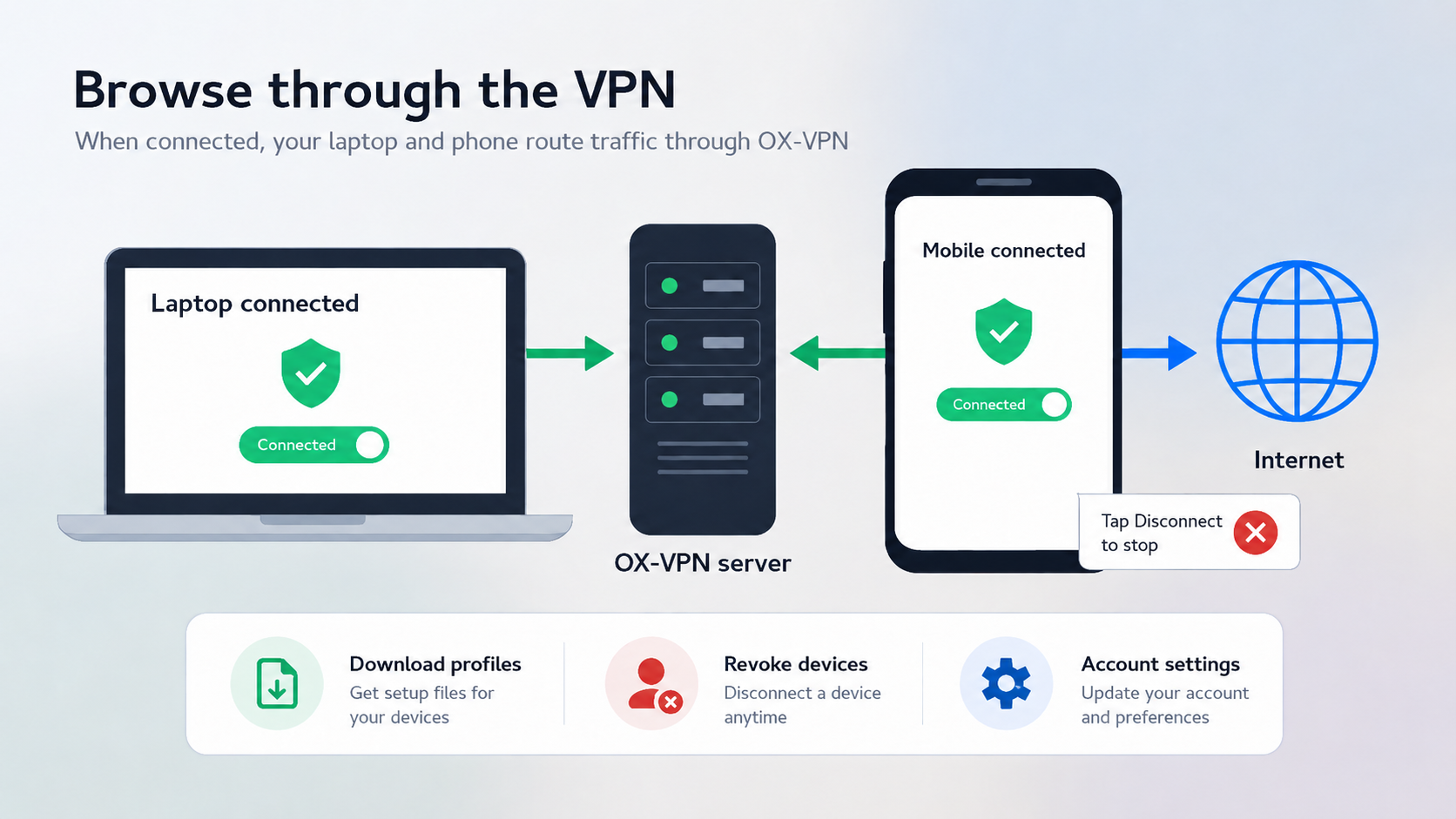
When OpenVPN Connect shows Connected, your device traffic is routed through the VPN server. To stop, open OpenVPN Connect and tap Disconnect. To manage access later, return to Dashboard to download profiles, revoke old devices, or open Account Settings.
Next click: Manage Your Account
Ready to connect?
Create your account, choose or request activation, then download your first OpenVPN profile from the dashboard.
2 Profiles included: Laptop + MobileYour subscription includes two OpenVPN profiles for laptop and mobile access.